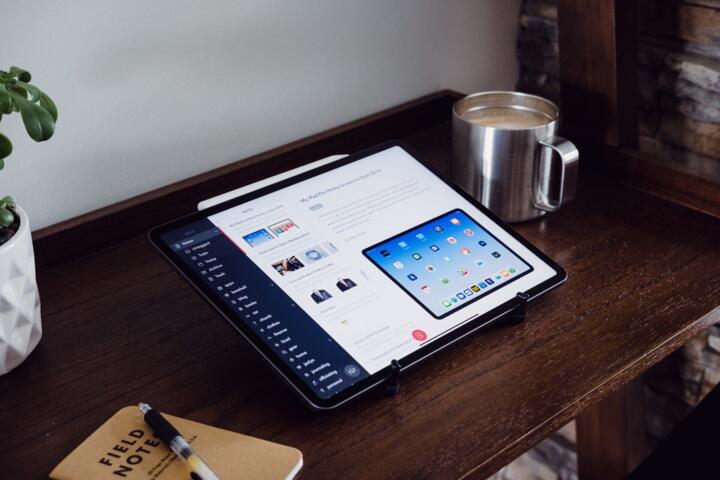
Notes Apps For iPad
Apple Notes, GoodNotes, and Notability all support handwriting on iPad, but they differ in how they store data, sync across devices, and handle PDF markup. Apple Notes ties closely to iCloud and Apple’s account ecosystem, which changes the backup and recovery story. GoodNotes and Notability focus more on a “notebook” workflow, with page-based organization and strong annotation tools. Your best fit depends on whether you want a system that behaves like a personal knowledge base or one that behaves like a set of binders.
Practical examples help: if you annotate a 30-page PDF for a course, the app’s zoom behavior, pen smoothing, and export options matter more than the icon design. If you take daily handwritten notes and later search for a term, handwriting recognition quality and indexing speed become the deciding factors. If you switch between iPad and Mac, sync latency and conflict handling can decide whether you trust the app during deadlines.
One small detail that changes the experience: on iPadOS, handwriting input quality depends on the Apple Pencil tip, palm rejection, and whether the app uses pressure data for stroke thickness. I’ve seen students blame the app when the real issue was a worn tip and a case that interfered with touch detection.
Common Pain Points
People often evaluate notes apps by features they see on a product page, then discover mismatches in daily use. A frequent example is PDF annotation: some apps feel great for quick highlights but behave awkwardly when you add multiple layers of markup, stamps, or typed callouts. Another mismatch appears in search: handwriting recognition can lag, and some apps index only after a note is saved or after the device is online.
Organization is another pain point. “Folders” and “notebooks” sound similar until you try to move a page, merge sections, or keep related materials together across multiple devices. If you teach or study across terms, you may also need predictable naming conventions for exports, or you end up with a folder full of similarly named PDFs.
Supporting technologies shape these outcomes. Handwriting recognition relies on on-device or cloud processing, depending on the app and your settings. Sync depends on iCloud or the vendor’s servers, plus network conditions and background refresh rules in iPadOS. Export depends on how the app represents strokes, text, and annotations internally; some formats preserve editability, while others flatten content into images or a single PDF layer.
Finally, privacy expectations often get fuzzy. Apple Notes generally follows Apple’s iCloud model, while GoodNotes and Notability have their own account and sync flows. If you annotate sensitive documents, you should check what is stored locally versus synced, and whether the app offers end-to-end encryption for cloud sync. Public documentation varies by version, so you should verify in the app’s current settings rather than relying on older reviews.
How To Choose And Set Up
Test Handwriting And Search
Before committing, test handwriting recognition with a controlled sample. Write the same short paragraph in each app using Apple Pencil, then search for a distinctive word after the note is saved. Measure the delay you experience: some apps index quickly, while others take longer after a sync cycle. If you use iPadOS 17 or later, check whether the app offers an “offline recognition” mode; if it does not, you may need Wi‑Fi for consistent results.
A mild frustration worth planning for: recognition errors often cluster around cursive-like strokes and unusual abbreviations, which can make search look worse than it is. For class notes, you can reduce misses by using consistent shorthand for key terms and writing them in a more legible style when you expect to search later.
As a side observation, I’ve seen users improve results by switching from very fast writing to slightly slower strokes for the first 10–20 words, then returning to their normal pace. That pattern helps the recognizer lock onto letter shapes.
Check PDF Markup Workflow
Annotate the same PDF in each app and time the steps you care about: opening, zooming, highlighting, adding a margin note, and exporting. Look for how the app handles page reflow and rotation, especially if the PDF comes from a textbook scanner. If you need typed text on top of handwriting, confirm whether the app supports text boxes that stay anchored to the page.
Export behavior matters for collaboration. Try exporting a marked PDF and then opening it on another device or in a different PDF viewer. Some apps preserve vector text and selectable highlights, while others flatten strokes into images, which can reduce searchability later. If your workflow includes submitting annotated PDFs to a learning management system, confirm the file size stays within typical upload limits.
One practical detail: if you annotate a PDF with many pages, check whether the app’s “thumbnail” rendering slows down scrolling. On older iPads, heavy notebooks can feel laggy even when the pen input remains smooth.
Plan Sync And Backups
Decide where your notes should live and how you will recover them. Apple Notes uses iCloud for sync, so your iCloud storage quota and device sign-in status directly affect availability. GoodNotes and Notability typically use their own account-based sync, which means you should review the app’s sync status indicator and confirm it works on both Wi‑Fi and cellular.
Do a recovery test that doesn’t involve drama. Create a test notebook, sync it, then sign out and back in on a secondary device to see whether the notebook reappears. If the app supports local-only mode, verify what happens when you later turn sync back on. I once watched a student lose a day of work because they assumed “auto-save” meant “cloud-saved,” and the app had been offline for hours.
Also check export and versioning. If you rely on a specific format like PDF or DOCX, export a small sample and confirm it matches your needs. For long-term archiving, periodic exports reduce the risk of being trapped in one app’s proprietary format.
Match Organization To Your Use
Choose an organization model that matches your tasks. If you study by course, you may prefer notebook-per-course structure with consistent naming. If you research by topic, you may prefer tag-like organization and fast search. Apple Notes supports folders and search, while GoodNotes and Notability emphasize notebooks and page navigation; the trade-off shows up when you need cross-topic grouping.
Set a naming convention before you start. For example: “2026-08-12 CourseName Topic” for new notes, and “CourseName_Week03.pdf” for exports. This reduces the time you spend hunting later, and it makes backups easier to audit.
Version numbers can matter for behavior. If you’re comparing apps, note the app version you tested and the iPadOS version, since handwriting recognition and sync features can change between releases. A quick note in your test folder prevents confusion when you revisit the decision a month later.
Case Examples For Real Use
Student With Weekly PDFs
A first-year student annotates weekly PDF problem sets and wants to review them before exams. They test Apple Notes by importing PDFs and using markup, then test GoodNotes by creating a notebook and inserting the same PDFs. They discover that GoodNotes’ notebook navigation feels faster for page-by-page review, while Apple Notes integrates well with iCloud search across other documents. The student exports a marked PDF from both apps and checks whether highlights remain selectable in a desktop PDF viewer. They choose the app that preserves their markup style and keeps export file sizes manageable for the course upload portal.
Researcher With Mixed Notes
A graduate researcher keeps meeting notes, drafts, and scanned articles. They use Apple Notes to store text-heavy meeting notes and rely on iCloud sync across iPad and Mac. For handwritten diagrams, they test Notability to see whether the app’s page layout and pen tools match their diagram style. After a week, they compare search results for handwritten terms and check whether exported PDFs retain legible text. They also verify that their chosen app supports exporting in a format they can archive outside the app, since long-term research often outlives a single tool.
Comparison Checklist
| Decision Factor | Apple Notes | GoodNotes | Notability |
|---|---|---|---|
| Sync Model | iCloud-based; depends on iCloud sign-in and storage | Account-based sync; verify status and offline behavior | Account-based sync; verify status and offline behavior |
| PDF Annotation | Markup tools inside Notes; check export fidelity | Notebook-first workflow; strong page navigation | Page-based markup; check text and highlight behavior |
| Handwriting Search | Recognition quality varies; indexing may take time | Recognition and indexing depend on settings and sync | Recognition quality varies; test with your handwriting |
| Export For Archive | Export options depend on note type; test PDF output | Export notebooks/pages; verify editability vs flattening | Export notes/pages; verify file size and readability |
| Best Fit | Text + documents + iCloud workflow | Notebook review and PDF-centric study | Mixed handwritten workflows with strong page tools |
Step-by-step checklist for a decision you can defend later:
- Write 20 lines in each app using the same Apple Pencil and a similar pace, then search for 3 uncommon words.
- Annotate one 10–20 page PDF with highlights, a margin note, and one typed label, then export and reopen the file.
- Confirm sync behavior by turning off Wi‑Fi for 30 minutes, taking notes, then turning Wi‑Fi back on and watching sync status.
- Export one notebook or folder and verify you can open it on a different device or in a desktop PDF viewer.
- Record your iPadOS version and the app version you tested, since handwriting and sync behavior can change between releases.
Common Mistakes To Avoid
One mistake is testing only with clean, short notes. Handwriting recognition and search indexing often look better on small samples, then degrade when notebooks grow large. Another mistake is ignoring offline behavior. If you take notes in a lecture hall with weak Wi‑Fi, the app’s local save and later sync timing can matter more than any feature list.
People also confuse “export works” with “export works for my use.” A marked PDF that looks fine on the iPad may flatten strokes when opened elsewhere, which can break searchability or make text harder to read. If you submit assignments or share notes with classmates, open the exported file in a second viewer before you rely on it.
Finally, users sometimes assume that handwriting recognition settings carry across devices automatically. If you sign into the same account on multiple iPads, check each device’s settings and confirm recognition is enabled. A small mismatch can create the illusion that one app “lost” notes when the real issue is indexing delay.
FAQ
Can I Search Handwritten Notes?
Yes in many cases, but search depends on handwriting recognition and indexing timing. Test with your own handwriting and wait for the app to finish processing after saving and syncing.
Do These Apps Support PDF Markup?
All three support PDF annotation workflows, but the quality of typed labels, highlight behavior, and export fidelity varies. Export a marked PDF and reopen it in a different viewer to confirm it matches your needs.
How Does Sync Work On iPad?
Apple Notes syncs through iCloud tied to your Apple ID and iCloud storage. GoodNotes and Notability use their own account sync; check sync status indicators and test offline-to-online behavior.
What Happens If I Run Out Of Storage?
For iCloud-based apps, low iCloud storage can block syncing or delay updates. For account-based sync, the app may restrict uploads or stop syncing; verify the app’s warnings and test recovery by exporting a small notebook.
Which App Is Better For Long-Term Archiving?
Choose the one that exports your notes in a format you can open years later, such as PDF. Periodic exports reduce dependence on proprietary storage and help you audit your archive.
Author's Insight
Notes apps differ less in “can you write” and more in how they represent strokes, index handwriting, and handle sync and export. Apple Notes tends to fit users who already rely on iCloud for documents and want one ecosystem for search and backups. GoodNotes and Notability tend to fit users who review notebooks page-by-page and annotate PDFs frequently, but you should verify export fidelity and offline sync behavior. A careful test plan—handwriting search, PDF export, and offline recovery—usually produces a clearer answer than feature comparisons.
One practical approach is to run a two-week trial with a single course workflow, then export the same set of notes from each app and compare what you can still search and read. That comparison reveals the real trade-offs without relying on marketing claims.
Key Takeaways
- Test handwriting search with your own words and measure indexing delay after saving and syncing.
- Annotate and export the same PDF in each app, then reopen the export in a second viewer to check fidelity.
- Verify offline-to-online sync behavior so you trust notes during weak connectivity.
- Use a naming convention and periodic exports to reduce dependence on any single app’s storage format.