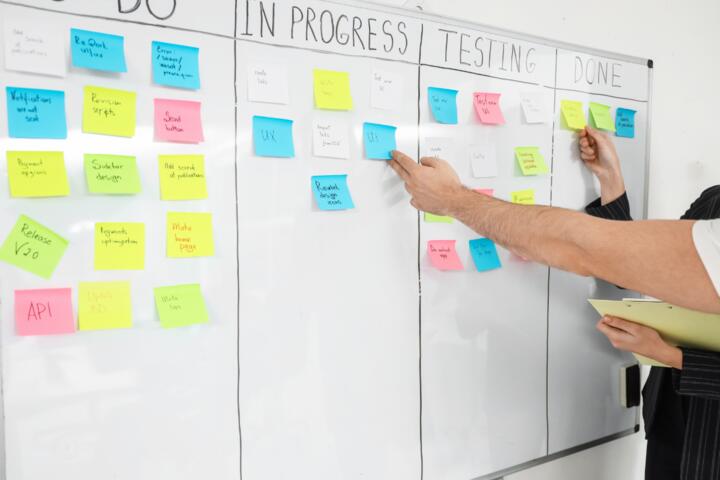
Choose A Brain-Fit System
A “system” is the set of cues and rules you use to capture information, decide what matters, and remember what to do next. It can be as simple as a single inbox plus a weekly review, or as detailed as a multi-step workflow across notes, tasks, and calendar. The brain-fit part comes from matching how you retrieve information under stress, how you switch contexts, and how you recover when you miss a day. If your system requires perfect follow-through, it will fail on the days you most need it.
Start with one concrete target: fewer forgotten tasks, faster recall of meeting details, or less time spent deciding what to do next. For example, if you often remember tasks only after you see a related email, your capture method should sit close to that trigger. If you forget appointments after you leave your desk, your calendar reminders need to reach you in the places you actually check—phone lock screen, smartwatch, or a visible wall cue.
Then define what “fits” means for you. Some people think in lists, others think in timelines, and others think in projects with sub-steps. Your system should reduce the number of decisions you make while your attention is already taxed. When you design for that, you stop treating the tool as the system and start treating the workflow as the system.
Main Problems And Pain Points
People often copy a workflow from a productivity blog and discover it collapses when their real life adds interruptions, mixed priorities, and incomplete information. The failure mode usually shows up as “too many places to look,” which forces the brain to re-learn where things live every time you’re stressed. Another common issue is a capture step that is too slow, so you delay writing things down until later, and later becomes a backlog.
Supporting technologies matter because they shape friction. A note app with fast tagging and search can reduce the cost of capturing messy thoughts, while a task manager that requires multiple fields can slow capture. Calendar systems differ in how they handle recurring events, time zones, and rescheduling; those differences affect whether your plan stays believable. Even the device setup matters: if your reminders depend on a desktop notification but you live on mobile, your brain learns the wrong cue.
Review cadence is another dependency people underestimate. Without a scheduled review, tasks and notes become a museum instead of a working memory aid. With too frequent reviews, you create decision fatigue and start ignoring the system. The right cadence depends on how quickly your priorities change and how often you generate new inputs.
Finally, many systems assume a stable definition of “done.” If you treat “done” as “fully resolved,” you’ll hoard tasks that need follow-up. If you treat “done” as “next action captured,” you’ll keep momentum but risk leaving loose ends. Your brain needs a consistent definition so it can trust the status labels.
Solutions And Advice
Map Inputs To One Inbox
Choose one primary capture location for the next 14 days. That can be a single notes inbox, a dedicated email label, or a task “inbox” list. The goal is not organization; the goal is speed and consistency. If you use a tool like Microsoft To Do or Todoist, keep the capture action to one tap or one shortcut. If you use a note app, create a single “Inbox” notebook and avoid nested folders at first.
Measure friction with a simple test: when a thought appears, how long until it lands in the inbox? If it takes more than 10–20 seconds, you’ll delay capture, and the brain will keep its own shadow memory. I’ve seen this fail with workflows that require tagging, selecting a project, and choosing a due date at capture time—people do it once, then stop.
Use Retrieval Cues, Not Memory
Design for recall under real conditions: tired mornings, noisy afternoons, and short attention windows. Retrieval cues are the small signals that trigger action, such as “meeting notes linked to the calendar event,” “a task that includes the exact next step,” or “a checklist stored with the place you perform the task.” If you rely on vague reminders like “work on taxes,” your brain must do extra interpretation every time.
Write tasks as actions you can start in under two minutes, or break them until they are. A task like “Prepare budget” becomes “Open last year’s spreadsheet and list income sources,” which reduces ambiguity. For notes, add context cues such as the date, the meeting name, or the decision you’re trying to remember. In practice, a note titled “Client Call 2026-09-12” with a short decision summary beats a long transcript you never search.
Set A Review Cadence That Matches Reality
Pick a review schedule you can keep even when you miss a day. A weekly review works for many people because it aligns with how priorities shift across a workweek, while a daily 5-minute scan can help if your tasks change constantly. Start with one review block and one output: decide what moves forward, what gets deleted, and what gets scheduled. If you use a calendar, schedule the review like an appointment so it competes with fewer priorities.
Track outcomes in plain terms. After two weeks, check whether the system reduced “where is that?” moments and whether tasks actually reach your next action stage. If you still feel lost, the issue is usually not the tool; it’s the capture rules, the cue quality, or the review output.
Run A 14-Day Fit Test With Clear Rules
Test the system with a controlled setup: one inbox, one task list, and one review. Keep the rules narrow so you can see what breaks. For example: capture everything into the inbox, convert only items that need action, and schedule tasks only during the review. If you’re tempted to “fix it later,” that’s a signal your capture step is too slow or your task definitions are too hard.
Use versioned changes so you can learn. On day 1, write down your rules; on day 7, adjust only one variable, such as adding a “Waiting For” list or changing how you label notes. I once watched a team switch from multiple task lists to a single list and saw fewer missed handoffs within a week, but the improvement depended on adding a “waiting” status so tasks didn’t vanish.
Case Examples
Busy Parent With Mixed Priorities
Scenario: A parent juggles school forms, appointments, and household errands, then remembers tasks only after seeing a related paper or email. They set up one capture inbox on their phone and add a single weekly review on Sunday evening. During review, they convert only time-sensitive items into calendar events and keep the rest as next actions with short labels.
Outcome after two weeks: fewer missed deadlines because reminders come from the calendar, not from memory. The system still struggles on days with last-minute schedule changes, so they add a rule: any new appointment gets added immediately to the calendar, even if the details are incomplete. That reduces the “I’ll fix it later” backlog, which was the main failure point.
Analyst With Meeting Notes Overload
Scenario: An analyst records long meeting notes but cannot find decisions later. They create a note template with three fields: decision, open question, and next action. They also link each meeting note to the calendar event title so search results cluster around dates.
Outcome after two weeks: faster retrieval because the note content matches how they search—by decision and date. They still keep transcripts elsewhere, but the template becomes the working layer. The main limitation is that the template requires discipline during meetings, so they allow a “draft” mode and finish the fields within 30 minutes after the meeting, which reduces the cognitive load during the call.
Checklist For System Fit
| Decision Point | What To Look For | Quick Test | Red Flag |
|---|---|---|---|
| Capture Speed | One inbox, minimal fields at capture | Time from thought to inbox < 20 seconds | You delay capture until later |
| Retrieval Cues | Dates, decisions, next actions | Search finds the right item in < 30 seconds | You need to remember where you stored it |
| Review Output | Decide, schedule, delete, or delegate | After review, tasks are either scheduled or next-action ready | Review turns into re-reading without decisions |
| Miss-Tolerance | Rules work after a skipped day | If you miss review, you still know what to do next | The system collapses after one lapse |
Use this as a decision support tool, not a scorecard. If you pass capture speed but fail retrieval cues, you’ll still feel scattered. If you pass retrieval but fail review output, tasks will pile up in the wrong state.
Common Mistakes
Overbuilding the taxonomy is the most frequent mistake. People create multiple folders, tags, and project hierarchies before they have stable capture habits. That adds setup time and increases the chance that new items land in the wrong place. A simpler structure often beats a perfect one because your brain learns the path through repetition.
Another mistake is mixing planning and execution in the same step. If you plan tasks during capture, you create a bottleneck and reduce capture frequency. If you execute tasks without a next-action definition, you create ambiguity and slow down initiation. You save time, reduce noise, and the inbox stops winning—until you stop reviewing, at which point the inbox starts winning again.
People also ignore device reality. A system that depends on desktop-only notifications fails for commuters and caregivers who check phones first. If your reminders are buried in an app you don’t open, your brain never learns the cue. I’ve seen this happen with reminder settings after an app update (for example, iOS notification toggles after a major version), where the workflow stayed the same but the cues disappeared.
Finally, many systems treat “motivation” as a requirement. If your system demands long sessions to maintain it, it will fail on low-energy days. A brain-fit system includes short maintenance paths, such as a 5-minute daily scan or a “triage only” review when time is tight.
FAQ
How Do I Pick Between Notes And Tasks?
Use notes for information you may need later and tasks for actions you can start. If an item needs a date, a next step, or a handoff, it belongs in tasks; if it needs context, a decision summary, or reference material, it belongs in notes.
What If My System Stops Working After A Week?
Check capture speed first, then review output. If you missed capture, the inbox will overflow; if review became re-reading, tasks won’t move into scheduled or next-action states.
How Often Should I Do A Review?
Many people start with weekly review plus a short daily scan. If priorities change daily, add a 5-minute daily check; if priorities change slowly, weekly review may be enough.
Should I Use Tags Or Folders?
Choose the method that matches how you search. If you remember dates and keywords, tags can work well; if you remember categories like “Work” or “Home,” folders can be faster. Avoid using both until capture is stable.
How Do I Reduce Forgetting Without Overloading Reminders?
Write fewer, clearer reminders tied to next actions. Prefer calendar events for time-specific items and task due dates for action deadlines; keep reminders short and include the first step in the task text.
Author's Insight
A brain-fit system is less about the app and more about the workflow’s friction, cue quality, and miss-tolerance. Evidence from cognitive psychology and human factors consistently points to external memory supports working best when they reduce ambiguity and decision load. In practice, that means fast capture, retrieval cues that match how you search, and a review step that produces scheduled or next-action items. If you want a measurable approach, run a 14-day fit test with one inbox and one review, then change only one variable at a time.
Key Takeaways
- Define what “fits” means for you: fewer missed actions, faster recall, or less time deciding.
- Use one capture inbox to prevent shadow memory and reduce “where did I put that?” moments.
- Write tasks as next actions you can start quickly, and store notes with decision and context cues.
- Choose a review cadence you can keep, and make the review output decisions, not re-reading.
- Run a short fit test, then adjust one variable; tool choice matters less than workflow rules.