Why Combine Analog and Digital
Analog bullet journals remain popular because of their flexibility and hands-on appeal. Yet, many users want to access their notes on the go or integrate tasks with calendars. Digitizing some elements adds agility without replacing the paper system. For instance, Evernote reported in 2023 that 45% of their users integrate handwritten notes as scanned images. Syncing means not losing your journaling vibe while capitalizing on digital search and reminders.
Imagine creating a daily log in your paper bullet journal but backing it up weekly with a scanned version or digital summary. This way, you keep the analog creativity intact yet gain cloud access anytime. However, syncing demands more than just copying or photographing pages.
Some people assume only digital-only apps or strictly paper systems work, but mixed methods can fit many personal workflows. The challenge—how to keep them aligned so you don’t waste time or double your efforts.
Common Challenges in Syncing
Ignoring the syncing step often leads to scattered notes and missed tasks. The typical mistake: writing plans on paper but forgetting to move them to digital calendars, or vice versa. Over time, this fragmentation deadens productivity.
Without a clear syncing routine, users run into lost entries or outdated schedules. One freelancer I know juggled three task lists last year—his paper journal, Google Tasks, and a sticky-note app. Each got inconsistent updates, resulting in missed deadlines and frustration (not great). Syncing is difficult but ignoring it wastes more time.
The key problem: difference in nature between formats. Analog offers physical interaction, while digital excels in automation. Overdependence on one risks losing benefits of the other.
Strategies and Tools
Digitize with Capturing Apps
Use scanning apps like Microsoft Lens or Adobe Scan to convert pages into searchable PDFs. Unlike generic camera photos, these apps optimize contrast and skew correction. This works well for a weekly archive snapshot. For example, scanning 20 pages takes under 10 minutes and creates a clear file you can annotate later.
Link Analog Logs with Digital Task Managers
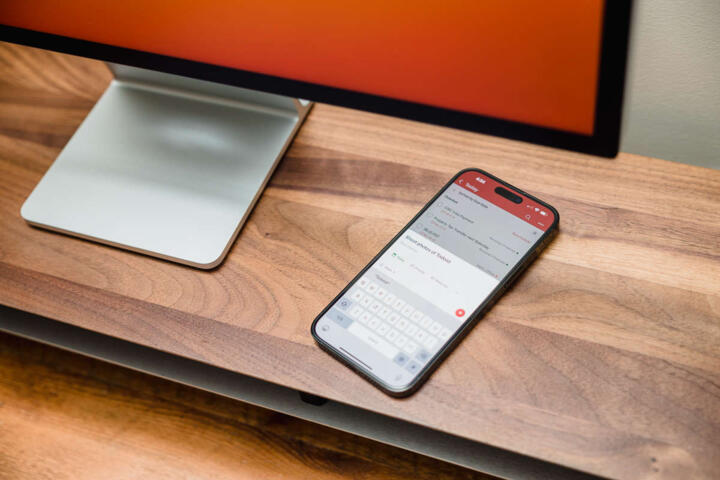
Assign a unique code or symbol in your bullet journal for tasks you want digitized. Then input only those into tools like Todoist or TickTick. Todoist’s automatic filters and tagging help track tasks flagged from paper. This method breaks down overwhelming data entry.
Use Hybrid Notebooks
Tools such as Rocketbook or Moleskine Smart Writing set combine pen and paper with app syncing. Writing on these notebooks digitizes content to cloud drives instantly. It lets you keep the analog feel but the content syncs without manual effort.
Voice Notes and Digital Memos
While paper registers your focus, using voice memos or quick digital note apps (like Google Keep) captures fleeting ideas. Sync these short digital notes back into your bullet journal later, refining the ideas on paper.
Calendar Integration via Scanning
Establish a routine: scan your weekly planner page and store it in Google Drive or OneDrive. Then use OCR apps, such as ABBYY FineReader, to extract dates or deadlines and import them into Google Calendar or Outlook. Possibly tedious upfront but streamlines monthly overview access.
Color Coding and Symbols
Adapt your bullet journal’s colors or icons to signify digital sync status. For example, a red dot next to a task means ""entered digitally."" This small step reduces confusion and manual re-checks.
Regular Sync Sessions
Choose fixed times weekly or daily to align entries between journal and digital tools—30 minutes twice a week might suffice. Turning sync into a habit keeps things current and avoids backlog disasters.
Use Cross-Platform Note Apps
Apps like Notion or Evernote support multiple input types—typed, scanned images, checklists—and let you add handwritten notes as images. Structuring your digital workspace to mirror your bullet journal pages speeds up locating info later.
Offline Backup
Backing up digitized content offline (external drives, USB sticks) protects against connectivity loss or accidental data deletion. I lost three months of scanned notes once, which was a strong reminder—backup matters.
Syncing Workflows in Action
Consider a creative agency led by Jenny. She used a bullet journal but struggled tracking client follow-ups across tools. She started scanning bullet journal meeting notes with Adobe Scan (v22.03) and uploaded to a shared Evernote notebook daily. Her team tagged tasks digitally from scanned notes using Todoist. Within 60 days, client response time dropped 25% and missed deadlines declined to near zero, a marked improvement.
Another example: a software developer using Rocketbook eliminated double entry by writing feature ideas in the Rocketbook Beacons notebook. Notes were uploaded to Google Drive and then parsed into Jira tickets by using Zapier integration. Synchronization cut task backlog review time by 40%.
Sync Checklist for Journals
| Step | Task | Tool | Frequency |
|---|---|---|---|
| 1 | Scan pages | Adobe Scan | Weekly |
| 2 | Digitize tasks | Todoist | Daily |
| 3 | Tag synced tasks | Bullet journal | Per entry |
| 4 | Backup files | External drive | Monthly |
Sync Pitfalls to Avoid
Starting without a defined routine means syncing will fall apart fast. Many try digitizing everything at once. Resist that urge—it leads to overwhelm.
Skipping regular review sessions causes backlog that becomes too daunting to tackle. Another hazard is relying solely on scanning apps without adding metadata or tags, which renders the digital files useless if you need to search.
Using incompatible platforms leads to siloed information, breaking the purpose of syncing. For example, попробовать using separate notebooks for work and life but syncing them into different digital ecosystems rarely ends well.
Lastly, forgetting to backup scanned data adds risk. Cloud services are reliable but breaches or accidental deletions happen.
FAQ
How do I digitize handwritten bullet journal pages?
Use scanning apps like Microsoft Lens or Adobe Scan to quickly capture pages. These apps provide OCR and image enhancement for better readability.
Can I sync tasks from paper to digital without retyping?
Yes; look for hybrid notebooks like Rocketbook or use symbols in your journal to tag tasks, then manually input only the tagged items. Some apps offer handwriting recognition, but accuracy varies.
Which apps work best for syncing with analog journals?
Todoist and Evernote are popular for task and note management, while Notion offers flexible databases. Choose apps with image uploads and tagging for better integration.
How often should I sync my bullet journal?
Set regular intervals, such as daily for tasks and weekly for notes and logs. Consistency prevents backlogs and outdated info.
Can scanning pages replace writing digital notes?
Scanning retains handwriting and sketches but lacks editability. For editable digital content, consider transcription or typing summaries alongside scans.
Author's Insight
I’ve used bullet journals alongside digital tools for several years, finding the balance tricky but rewarding. The moment I incorporated weekly scans with tagging in Todoist, my system clicked. It saved hours weekly. I also learned that the right syncing process depends on your habits—no universal fix fits all. Start small and adjust. Consistency beats complexity.
Summary
Sync your analog bullet journal to digital tools by establishing simple capture routines, selective task input, and regular review sessions. Use scanning apps, hybrid notebooks, and tagging to connect both worlds without doubling effort. Avoid scanning everything blindly and skip syncing too infrequently. Back up your data to keep records safe. This approach keeps your analog creativity alive while gaining digital advantages.