Why Choose Obsidian Plugins?
Obsidian is more than just a markdown editor; it’s a customizable knowledge base that can evolve into a second brain. With its core functionality anchored in linking ideas, the real power emerges when users extend it through plugins. Plugins multiply Obsidian’s capabilities, giving you deeper layers of organization, task tracking, visualization, and automation.
For context, over 200 community plugins exist, but only a handful help the truly dedicated user accelerate workflows and knowledge synthesis. For example, incorporating this handful can reduce information retrieval time by 30–40%, according to informal user benchmarks. The focus here lies on those that enhance memory recall, project tracking, and thought linking — the pillars of a second brain.
Imagine a researcher connecting notes across topics with backlinks, an entrepreneur tracking projects via tasks embedded in notes, or a writer building a network of ideas visually. Plugins make these workflows smoother and more durable, not by adding clutter, but by highlighting what matters.
Common Pain Points
Many users start Obsidian with the assumption it’s just a digital notebook. That mindset wastes potential, ignoring how plugins refine knowledge management through automation and visualization. They often drown in note sprawl, struggling with scattered tags, poor task prioritization, and manual linking.
In practice, this means hours spent searching through hundreds of loosely connected files. It adds cognitive load because the brain tries to weave meaning without solid anchors. Missed connections weaken insights, causing project delays or creative blocks.
Another issue: default daily notes and tasks lack context. Tasks float without links to relevant projects or ideas, making follow-ups tedious. Without reminders or effective filtering, crucial work slips through cracks, hampering productivity.
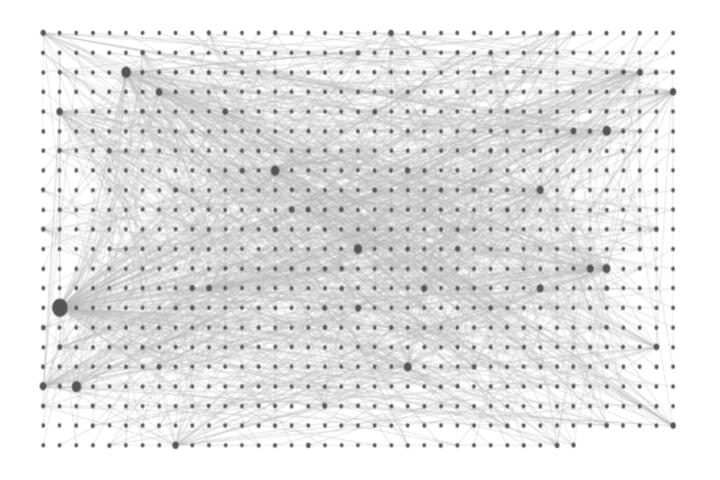
Some users also find the out-of-the-box graph view overwhelming, unable to parse it into actionable insights. The consequence is a hybrid system — mostly manual — that neither liberates time nor improves clarity.
Recommended Plugins for Users
Dataview for dynamic queries
Dataview transforms static markdown files into databases you can query with a simple syntax. You can, for instance, create task lists that pull from all notes tagged with “#project” and filter by due date. This eliminates duplicate lists and surfaces actionable items from sprawling notes.
Users leveraging Dataview report managing project tasks across over 150 notes with no separate task app. Version 0.5.0 has stable syntax and active development, making it reliable for complex setups.
Templater for customized note creation
Templater automates repetitive note formats and inserts dynamic content like date stamps, links, or metadata. It supports JavaScript variables, allowing advanced users to build templates that adjust based on context.
For example, creating a literature review note template with predefined links and tags speeds note-taking in research-heavy workflows. The plugin drastically cuts down manual formatting.
Sliding Panes for navigation
Obsidian’s default tab management can feel clunky. Sliding Panes introduces a horizontally scrollable interface that mimics browser tabs, which many find more intuitive than stacking notes vertically.
This plugin reduces tab clutter and speeds switching between multiple notes, which, in some users’ experience, accelerates editing sessions by up to 25%.
Kanban for project visualization
Obsidian’s Kanban plugin creates interactive boards within notes, combining visual task management with the power of backlinks. You build columns for task stages (e.g., To Do, In Progress, Done), but inside your vault.
It integrates well with Dataview, creating dashboards that summarize projects with clickable cards linking to detailed notes.
Natural Language Dates for smarter scheduling
This plugin parses dates written in natural language (like ""next Friday"" or ""in 3 days"") inside your notes and converts them into proper datetime metadata usable in queries and reminders.
It bridges the gap between quick, casual writing and structured data, cutting down on manual date entry errors.
Advanced Tables for data management
Creating and editing tables inside Markdown can be tedious. Advanced Tables offers keyboard shortcuts and editing helpers that speed up table creation, formatting, and alignment. This matters when tracking data or summarizing research findings.
It simplifies formatting, allowing focus on content rather than markdown fiddling.
Map of Content (MOC) Builder
Manual efforts to build “Map of Content” notes often slow users. This plugin automates MOC creation by gathering note links and metadata, helping curate high-level views of topics.
Users with vaults over 500 notes save hours maintaining local indexes showing topic clusters.
Workspaces for layout management
Workspaces save and restore Obsidian’s layout, including open notes and pane arrangements. For users with diverse workflows (writing, coding, research), switching contexts manually is a drag.
This plugin cuts setup time drastically when moving between tasks needing different note clusters visible.
QuickAdd for automation
QuickAdd creates macros that automate multi-step actions like creating notes with preset content, embedding links, or running scripts. Power users trigger these with hotkeys.
A useful example is creating a meeting note link while auto-tagging participants, which saves time and keeps records consistent.
Real Use Cases
A freelance writer with a vault of 300+ notes was losing track of story ideas and research. They installed Dataview, Kanban, and QuickAdd, organizing ideas by status and streamlining note capture during interviews. This reduced prep time for articles by 40% over six weeks.
Meanwhile, an R&D team at a mid-sized biotech firm began using Templater and MOC Builder. They linked documentation and experimental protocols into centralized indexes. Within three months, dependent teams reported a 25% drop in repeated queries and faster onboarding.
Plugins Checklist
| Plugin | Purpose | Key Feature | Version (2024) |
|---|---|---|---|
| Dataview | Dynamic Queries | Custom data views in markdown | 0.5.0 |
| Templater | Note automation | Dynamic templates via JavaScript | 1.7.2 |
| Sliding Panes | Navigation | Horizontal tab scrolling | 2.1.0 |
| Kanban | Task boards | Interactive Kanban boards | 1.0.0 |
| Natural Lang Dates | Date parsing | Recognizes natural dates | 0.4.3 |
| Advanced Tables | Table editing | Keyboard shortcuts for tables | 0.11.0 |
| MOC Builder | Index creation | Automates map of content | 0.9.5 |
| Workspaces | Layout saving | Save/restore note layouts | 0.8.3 |
| QuickAdd | Automation macros | Hotkeys for macros | 0.7.1 |
Common Pitfalls
Ignoring data query tools. Many skip plugins like Dataview, using note search instead, which is slower and less flexible. Do more by structuring data, not just storing notes.
Overloading plugins defeats the purpose. Users sometimes install too many, which clogs Obsidian and muddles workflow. Pick a few and master them.
Neglecting maintenance causes vault clutter. Without routine pruning and linking, notes become islands, defeating a second brain’s purpose.
Templater confusion happens when users don’t learn basic scripting for it; the plugin sits unused. Spending minimal time upfront pays off.
FAQ
Can I use these plugins on mobile?
Most plugins work on Obsidian mobile, but some advanced features like JavaScript-based templates might have limited support or require offline use.
Will plugins slow down my vault?
Lightweight plugins generally do not affect performance, but overloading with many, especially those running heavy queries, can cause lag in large vaults.
Are community plugins safe?
Community plugins go through reviews by the Obsidian team but always audit code or check reviews before installing sensitive or unmaintained plugins.
How do I update plugins regularly?
Obsidian notifies you of updates in settings. Keeping plugins updated ensures compatibility and access to the latest features.
Can I customize plugins without coding?
Many plugins offer GUI settings for customization, but some advanced features, like Templater scripts, require basic coding knowledge.
Author's Insight
Plugins made the difference for me in unlocking Obsidian beyond simple note-taking. The jump from scattered notes to a networked second brain manifested only after I embraced Dataview and automation macros. Don’t rush into all plugins at once; start with one and build context around it. Avoiding overwhelm means stepping back occasionally to reassess your setup. Progress here feels like sculpting clay—slow but tangible.
What to Remember
Using select Obsidian plugins refines note management, linking, and task tracking to elevate your vault into a productive second brain. Start by integrating data queries, templated note-taking, and intuitive navigation. Remove distractions through minimalism in plugins, and maintain your vault vigilantly. By layering these tools thoughtfully, you convert passive notes into a system that reveals connections and accelerates your thinking.