Understanding Inbox Zero
The Inbox Zero philosophy originated in the early 2000s, popularized by productivity expert Merlin Mann. Its core idea focuses on processing incoming messages and tasks swiftly, so they do not accumulate and distract. Achieving zero means no pending emails or notifications linger unread or untreated. For example, a user with 500 unread emails hiding urgent requests cannot prioritize work efficiently. According to Radicati Group, the average office worker handled over 120 emails daily in 2023, highlighting the potential for overwhelm without some form of triage.
Inbox Zero works best when applied across all communication channels, not just email. That includes Slack, WhatsApp, Trello comments, and even social networks where alerts constantly arrive. The goal is an organized digital space where every message receives attention or a decision quickly.
Common Roadblocks
People often confuse Inbox Zero with complete absence of emails or messages. They try to delete everything indiscriminately or leave tasks untracked. This misunderstanding leads to frustration because the system demands active management, not avoidance. Ignoring messages hoping they'll disappear never solves the overload problem.
Failing to act promptly causes backlogs that sap energy and focus. Missed deadlines and overlooked requests follow, undermining productivity. A manager with 1,000 unread Slack threads wastes hours rediscovering forgotten discussions. Without boundaries, notifications keep interrupting, fragmenting concentration.
Another mistake is relying solely on app defaults without customization. Using Gmail’s basic inbox view rather than custom filters decreases sorting efficiency. Treating all notifications alike prevents distinguishing urgent from trivial ones.
Practical Recommendations
Set Clear Processing Times
Schedule fixed slots for inbox review to prevent constant checking. Studies show it takes approximately 23 minutes to refocus after an interruption—reducing these improves productivity. Allocate 20 to 30 minutes twice daily for email and messaging checks. Resist the temptation to read immediately.
Use Filters and Labels
Create rules that automatically sort messages by category or sender. Gmail’s filter system, for example, lets you archive newsletters instantly, keeping the inbox for actionable emails only. Slack channels can be muted to silence less urgent conversations. Roughly 40% of emails are now promotional or bulk, so filtering those out saves clutter space.
Respond, Delegate, Defer, Delete
Apply the four D’s: quickly respond if it takes under two minutes. Forward tasks if someone else handles it. Schedule deferred actions in a task manager. Delete irrelevant or outdated content promptly. This triage prevents backlog build-up.
Consolidate Notifications
Turn off cross-app alerts that pile up simultaneously. Use services like Microsoft Power Automate or IFTTT to funnel important alerts into one feed or app. This centralization reduces the cognitive load of juggling multiple platforms.
Use Task Managers Linked to Inbox
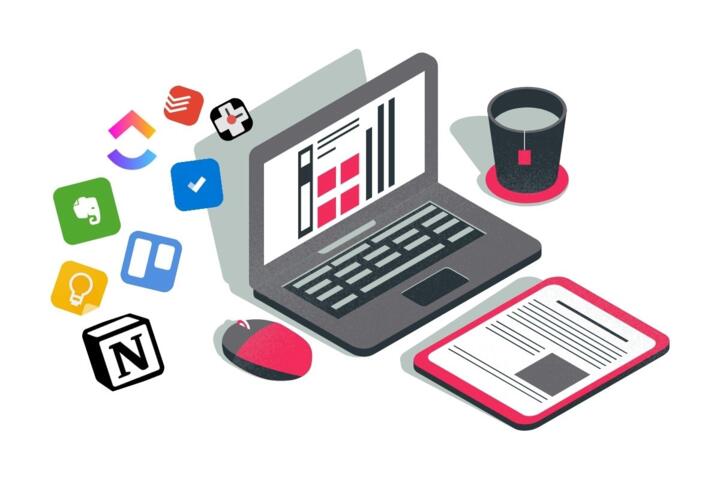
Tools like Todoist, Asana, or Notion integrate with email and chat apps, making it easy to convert messages into tasks with deadlines. This approach helps track commitments that might otherwise fall through cracks.
Archive Ruthlessly
Keep the inbox for immediate action and archive everything done to keep the interface clean. Gmail offers infinite archive storage, so there’s no need to delete for space. Archiving helps find old messages without distraction.
Adopt Minimalism in Communication
Request precision in messages by clarifying purpose and deadlines upfront. Encourage short, well-structured emails or chats. This habit decreases unnecessary back-and-forth, speeding resolution.
Review and Reflect Weekly
Spend 15 minutes at week’s end reviewing pending tasks, sorting archived items, and adjusting filters. This ritual prevents digital debris accumulation and improves system tuning over time.
Leverage Search and Shortcuts
Master search syntax in email clients and apps to find content fast. Use keyboard shortcuts—Gmail’s ""k"" and ""j"" keys or Outlook’s Ctrl+E—reduces time spent navigating interfaces.
Real-World Examples
A mid-size marketing company in 2021 struggled with communication chaos: over 1,200 unread emails per team member, redundant messages in Slack, and missed client deadlines. They implemented scheduled inbox checks, filters, and unified Slack notification control. Result? A 35% drop in email backlog and 25% faster response rates. Employee burnout also declined, reflected in internal surveys.
A freelance designer used a strict two-minute rule for emails combined with task lists linked to Gmail via Todoist. Within three months, his client follow-ups improved by 40%, and project delays were nearly eliminated. He still occasionally battles email floods, but his system keeps those manageable.
Checklist for Inbox Control
| Step | Action | Tools To Use | Expected Result |
|---|---|---|---|
| 1 | Schedule Inbox Checks | Calendar Apps | Reduce interruptions |
| 2 | Create Filters & Labels | Gmail, Outlook | Targeted sorting |
| 3 | Apply 4D Processing | Manual/Apps | Fewer delayed tasks |
| 4 | Mute Non-Essential Alerts | Slack, Teams | Less distraction |
| 5 | Link Tasks to Inbox | Todoist, Asana | Clear task tracking |
Common Errors
One frequent slip: reading every message immediately instead of batch processing. This fragment sticks your attention and doubles task switching. Another misstep is over-filtering—burying messages in folders unread for weeks. This defeats zero inbox spirit. Archiving everything without action can also create unseen workloads.
Ignoring apps outside email reduces efficiency. For instance, a Slack channel with 100 unread messages contains client requests not visible in the inbox. Lastly, hoarding all emails out of fear of loss creates noise, so deleting confidently is part of the process.
FAQ
Is Inbox Zero only for email?
No. The principle applies to all message types—chat, social notifications, task comments.
How often should I check messages?
Twice daily sessions of 20–30 minutes work well for most people.
Does deleting messages lose important info?
Selective deletion is safe. Archive or export records if unsure.
What apps support Inbox Zero best?
Gmail, Outlook, Slack, Todoist, and Notion offer strong support.
Can Inbox Zero reduce stress?
Yes. Reducing digital overload improves mental clarity and productivity.
Author's Insight
From personal experience, Inbox Zero transformed how I manage communications across five platforms. It wasn't about perfection but consistent clearing and knowing when to act or defer. Early on, I underestimated filtering's power, relying on memory instead. Also, cross-application notification control prevents scattered focus, something often overlooked in productivity books.
Key Takeaways
Maintaining Inbox Zero demands action: scheduling, filtering, deleting, and linking tasks. Expanding this approach beyond email to all digital channels protects attention and cuts stress. Start small, customize filters, and track the impact. You save time, reduce noise, and the inbox stops winning.