Organize With PARA
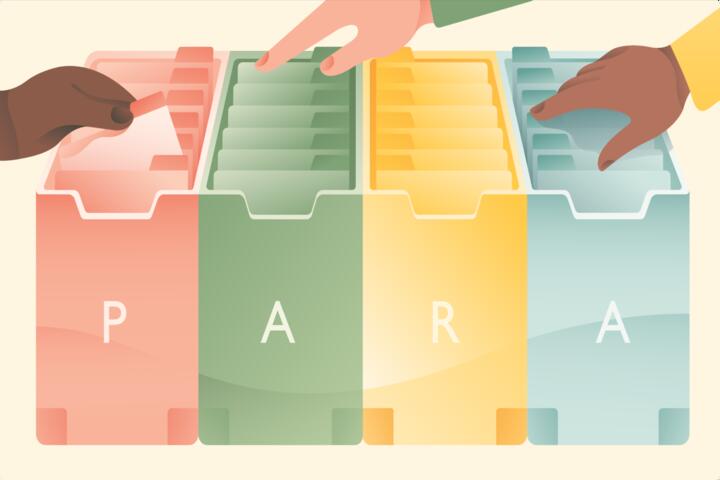
PARA is a simple filing model that sorts digital items into four categories: Projects, Areas, Resources, and Archive. The method works best when you treat folders as decision rules, not as a one-time cleanup. For example, a “2026 Home Insurance Renewal” folder belongs in Projects because it has a defined start and end, while “Home Maintenance” belongs in Areas because it keeps recurring. A PDF manual you might consult later sits in Resources, and anything you no longer need for active work moves to Archive.
To make PARA practical, you need a consistent definition of each category. Projects are time-bound outcomes, Areas are ongoing responsibilities, Resources are reference material without a specific deadline, and Archive is where you store completed or inactive items. The model does not require a specific app, but it does require the same folder logic across devices so you can find things without remembering where you put them last month. If your file system already has deep subfolders, PARA can still work by mapping existing folders into the four top-level groups.
A small aside: if you use a note app that syncs across devices, check the version behavior for attachments. Some apps show attachments differently on mobile, and a folder you can browse easily on desktop may feel different on a phone. That mismatch matters because PARA depends on predictable navigation.
Common PARA Mistakes
People often treat PARA like a one-time reorganization instead of a living set of rules. The result is a folder tree that looks tidy on day one and then collapses under new downloads, screenshots, and email attachments. Another frequent issue is category drift, where a folder starts as a Project and later becomes a dumping ground for anything related to the topic. When that happens, you lose the main benefit: knowing where to put new items and how to retrieve them later.
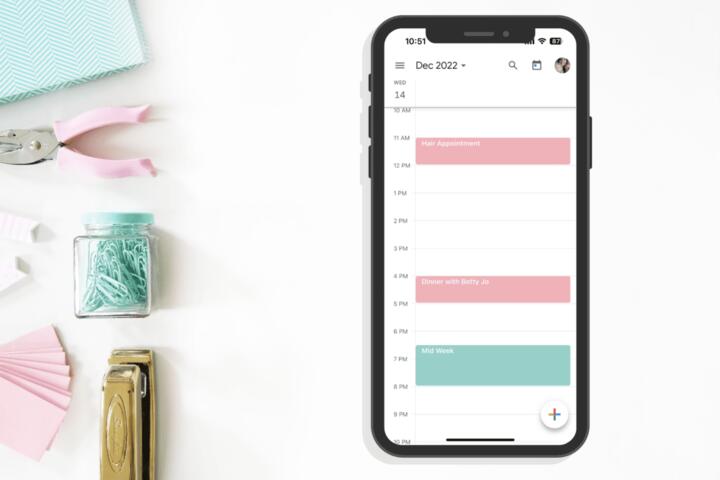
Dependencies also cause confusion. PARA assumes you can separate “work that has a deadline” from “work that keeps running.” That separation depends on how you track tasks. If you store tasks in one place and files in another, you need a repeatable link between the two. For instance, a calendar event for “Tax filing” should point to a folder in Projects, while a recurring “Taxes” responsibility belongs in Areas. Without that mapping, you end up with files scattered across downloads, email, and multiple folders that all claim to be the “real” location.
Another pain point comes from how people name files. A folder can be correct while the files inside it become unsearchable because names vary wildly. If you rename “Invoice” files as “Invoice,” “Inv,” “Receipt,” and “Final,” you create a retrieval problem that PARA cannot fix. Search helps, but search depends on consistent metadata and file naming, and many systems index only parts of content.
Set Up The Four Folders
Define Projects With Dates
Create a top-level folder named “Projects” and store items tied to a specific outcome and timeframe. Use a naming pattern that includes the target and year, such as “Vehicle Registration 2026” or “Kitchen Paint Prep (Q3 2026).” When the outcome completes, move the folder to Archive. A realistic outcome target is simple: after two weeks, you should be able to answer “Where do I put new items for this deadline?” in under 10 seconds without opening multiple apps.
Tools and methods: a task tracker or calendar can act as the trigger for folder creation. When you schedule a deadline, create the matching Project folder at the same time. If you use a cloud drive, enable version history so you can recover overwritten files. If you use a note app, keep a short “Project index” note inside the Project folder that lists key documents and links. I’ve seen people skip the index and then spend time hunting for the one PDF they needed.
Map Areas To Ongoing Work
Create a top-level folder named “Areas” for responsibilities that repeat or never fully finish. Examples include “Personal Health,” “Home,” “Work,” “Finance,” or “Learning.” Store reference documents and templates that support ongoing tasks, not the time-bound deliverables. For instance, “Home Maintenance Checklist” belongs in Areas, while “Gutter Cleaning 2026” belongs in Projects. A mild frustration here: many people want to put everything under “Work,” which turns Areas into a second Projects folder and removes the clarity PARA aims to create.
Tools and methods: keep a short Area overview note that lists recurring activities and where to find the relevant templates. If you use a password manager or banking portal, store only the non-sensitive reference material in Areas, such as account instructions or a checklist for what to verify. Avoid storing credentials in plain files, because PARA does not add security by itself.
Store Resources As Reference
Create a top-level folder named “Resources” for material you might consult later but that does not belong to a specific deadline or responsibility. Examples include manuals, warranties, research notes, style guides, and “how-to” PDFs. Keep Resources organized by topic only when you need it; too many subfolders can slow retrieval. A practical number: if you cannot name the top 10 subtopics from memory, your Resources structure probably has too many layers.
Tools and methods: use consistent file naming for reference documents, such as “DeviceName_Manual_YYYY” or “Topic_Source_YYYY.” If you download from the web, store the original URL in the file name or in a companion note. Some systems strip metadata from PDFs during export, so a URL note helps when search fails.
Archive With A Clear Rule
Create a top-level folder named “Archive” and move completed Projects there. Define a rule for when to archive, such as “after the deadline passes and the final document is saved.” Archive should also hold obsolete versions and old reference material you still need for proof, like paid receipts for tax years. A realistic outcome target is that your active folders stay small enough to scan quickly; if Projects grows without moving anything to Archive, the system stops being a system.
Tools and methods: keep Archive searchable by year, such as “Archive/2024” and “Archive/2025,” if your volume is high. If your storage provider has retention or legal hold features, understand how they interact with deletion. Some services keep deleted files in a recycle bin for a period, which affects storage usage and recovery.
Case Examples For Real Life
Receipt Drift After A Trip
Anonymized scenario: A person downloads hotel invoices, transit receipts, and a travel insurance claim form into a single “Downloads” folder during a trip. Two weeks later, they need the insurance claim PDF and cannot remember which file contains the policy number. Under PARA, they create “Projects/Travel Insurance Claim 2026” when the claim starts, then move the relevant receipts and the completed claim form into that Project folder. After submission, they move the Project folder into Archive. The retrieval improvement comes from keeping all claim-related documents in one place, not from perfect naming.
Ongoing Health Records
Anonymized scenario: A person saves lab results and appointment summaries in multiple places: email attachments, a health app export folder, and a personal drive. Under PARA, they keep “Areas/Personal Health” for ongoing reference materials like a vaccination summary and a yearly checklist. They create “Projects/Annual Checkup 2026” for the specific set of documents tied to the appointment. After the checkup, they move that Project folder to Archive while leaving the reference materials in Areas. This reduces the chance of mixing “this year’s results” with “the template you reuse every year.”
PARA Checklist And Table
| Item Type | PARA Folder | Decision Test | After Completion |
|---|---|---|---|
| Deadline-based deliverable | Projects | Has a target date and a defined outcome | Move to Archive |
| Recurring responsibility | Areas | Keeps repeating or never fully finishes | Keep in Areas; update reference files |
| Reference material | Resources | Useful later, not tied to a deadline | Replace if outdated; archive old versions |
| Completed or inactive items | Archive | No longer needed for active work | Keep for proof or historical reference |
Step-by-step checklist for new files:
- Create the four top-level folders once, then stop redesigning the structure for every new item.
- For each incoming file, identify whether it belongs to a deadline outcome (Projects), a recurring responsibility (Areas), or a reference you may consult later (Resources).
- If the file supports a specific deadline, create the matching Project folder and move the file there immediately.
- If the file supports ongoing work, place it in the relevant Area and update the Area index note.
- If the file is reference material, store it in Resources with consistent naming.
- When a Project finishes, move the entire Project folder to Archive rather than cherry-picking files.
A small aside: if you use a desktop sync client, check its behavior for “move” versus “copy.” Some clients treat moves as delete-and-reupload, which can affect bandwidth and version history.
Common Mistakes To Avoid
One mistake is creating too many subfolders inside Projects. PARA works when Projects remain easy to scan, so keep subfolders minimal and use file naming for detail. Another mistake is using Archive as a temporary holding area. If you move items to Archive before you finish the work, you create a retrieval tax later, especially when you need a document you already “archived.”
People also confuse Resources with Areas. A “Health Insurance Plan Summary” can be a reference, but it also supports an ongoing responsibility like “Finance” or “Personal Health.” The deciding factor is whether you need it for recurring decisions; if you do, keep it in Areas and store the plan-specific documents in the relevant Project when you renew or switch.
Security mistakes matter too. PARA does not encrypt files. If you store sensitive documents like tax IDs or medical records, use the security features of your storage provider and your device. For example, enable full-disk encryption on laptops and use strong account authentication. If you share folders, review sharing permissions because a tidy structure can still leak data.
Finally, avoid “perfect system” procrastination. A system that works for 80% of incoming items beats a system that stays theoretical. You can refine naming rules after you see where search fails, which often shows up after a few weeks of real usage.
FAQ
What Goes In Projects vs Areas?
Projects hold time-bound outcomes such as “Renew Passport 2026” or “Submit Tax Return 2026.” Areas hold ongoing responsibilities such as “Personal Health” or “Home Maintenance,” where you keep templates, checklists, and reference documents used repeatedly.
How Do I Handle Ongoing Documents?
Store ongoing reference materials in Areas and store the specific year’s or cycle’s deliverables in a matching Project. After the cycle ends, move the Project folder to Archive while leaving the reference files in Areas.
Should I Use Subfolders Inside Each Group?
Use subfolders only when they reduce search time. Many setups work with few layers: Projects by outcome name, Areas by responsibility name, Resources by topic, and Archive by year.
What If I Already Have A Messy Folder Tree?
Map existing folders into the four top-level categories first, then migrate items in batches. Start with active items and the most frequently searched documents, then move older material later.
Does PARA Work With Notes Apps?
PARA works when your notes app supports folder-like organization and consistent syncing. Keep an index note for each Project and Area so attachments and links remain findable across devices.
Author's Insight
PARA is a decision framework more than a specific software feature. Its strength comes from separating time-bound work from ongoing responsibilities and from reference material, which reduces ambiguity when new files arrive. The method also benefits from pairing folder rules with naming conventions and a simple archiving trigger. Evidence-based caution: no folder system fixes poor file hygiene, so search behavior, metadata indexing, and device security still determine how well the system performs.
If you want a measurable start, track how long it takes to find three common items after one week of using PARA. If retrieval time improves and misfiled items drop, the structure is working. If retrieval time stays slow, the issue usually sits in naming consistency or in missing index notes rather than in the four-category model.
Key Takeaways
PARA organizes digital items into Projects (time-bound outcomes), Areas (ongoing responsibilities), Resources (reference material), and Archive (inactive items). Use a naming pattern that includes the target and year for Projects, and keep Areas focused on recurring responsibilities. Archive completed Projects as whole folders to avoid partial cleanup. Treat PARA as a set of rules for incoming files, not a one-time cleanup, and adjust naming and indexing after you observe where search fails.